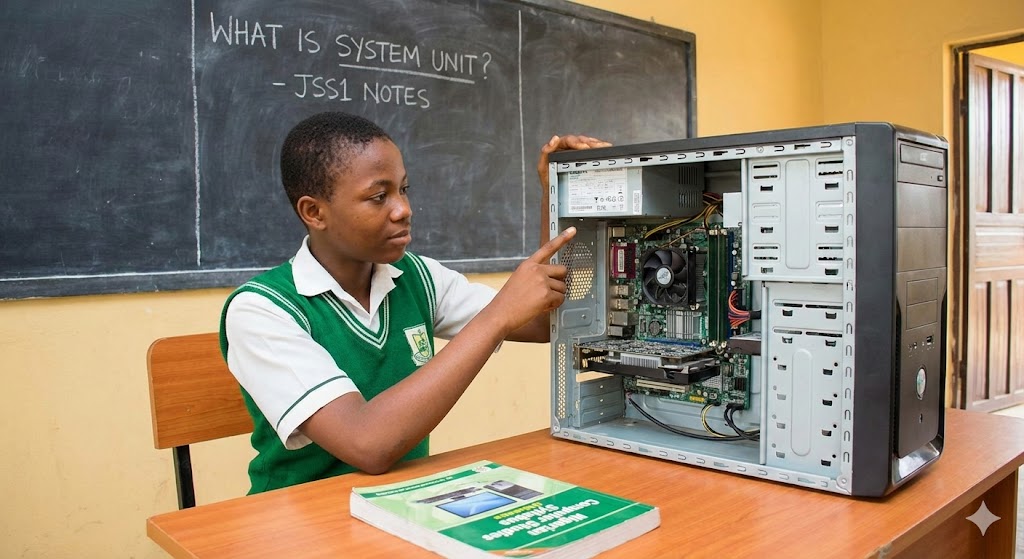
What is System Unit? Definition and Components for Secondary school Students
What is System Unit? Definition and Components for Secondary school Students
Let’s be honest, many students make a very common mistake in the exam hall. When I ask them to point to the computer, they point to the monitor (the screen). That is wrong. The screen is just the television part; the real computer is the box sitting beside it.
This topic usually comes out in the objective questions and theory part of your Junior WAEC (BECE). If you want to understand what is system unit, you need to stop looking at the screen and focus on the casing that powers everything. Grab your notebook and pen. Let us break this down simply so you can get your full marks.
Meaning of System Unit
The system unit is the main part of a desktop computer that houses the internal electronic components used for processing data. It is usually a rectangular box made of metal or plastic.
Think of it this way. The system unit is like the human body, while the monitor is just the face. You can change your face (maybe with makeup or a mask), but the body holds the heart, the brain, and the lungs. Without the system unit, the monitor, keyboard, and mouse are just useless plastic. They have nowhere to send their messages.
Most people call this the “CPU,” but that is technically not correct. The CPU is just a small chip inside. The whole box is called the System Unit or Computer Case.
External Features of the System Unit
External features are the parts of the computer case that you can see and touch without opening the casing. These are usually found on the front or the back of the box.
When you look at the front of the computer in your school lab, you will see these buttons and ports:
-
Power Button: This is the button used to switch the computer on and off. It is usually the biggest button.
-
Reset Button: This is a smaller button used to restart the computer forcibly if it “hangs” or freezes.
-
USB Ports: These are the small rectangular holes where you insert your flash drives.
-
DVD/CD Drive: The tray that slides out for you to put in a disc.
Internal Components of the System Unit
Internal components are the delicate electronic parts found inside the system casing that perform the actual work of computing. You generally do not see these unless a technician unscrews the computer.
I always tell my students: do not open the system unit unless you know what you are doing. The parts inside are sensitive.
Here are the main components inside:
-
Motherboard: The main board that connects everything.
-
CPU (Central Processing Unit): The brain of the computer.
-
RAM (Random Access Memory): The temporary workspace.
-
Hard Disk Drive (HDD): The permanent storage.
-
Power Supply Unit (PSU): The box that connects to the wall socket and gives power to the motherboard.
Functions of the Central Processing Unit
The Central Processing Unit (CPU) is the brain of the computer responsible for interpreting and executing instructions. It is a small silicon chip that sits directly on the motherboard.
Imagine the CPU is the Principal or Headmaster of your school. The Principal does not sweep the floor or teach every subject. However, the Principal gives the orders. Nothing happens in the school without the Principal’s approval. That is exactly what the CPU does. It tells the hard disk to save, tells the printer to print, and tells the screen what to display.
You can read more about how processors work here.
The Motherboard and Its Importance
The motherboard is the main printed circuit board that holds and connects the crucial components of the computer together.
If the CPU is the Principal, the motherboard is the road network. Think of the motherboard like the Third Mainland Bridge or the busy roads in Lagos. It allows traffic (data) to move from one place to another. If the road is bad or broken, the car (information) cannot move, no matter how fast the engine is. Every single part of the computer must plug into the motherboard to function.
Primary and Secondary Storage Differences
Primary storage holds data temporarily for the CPU to access quickly, while secondary storage keeps data permanently.
This is where students often get confused. Let me give you a “Naija” example to make it stick forever.
1. Primary Storage (RAM): This is like your Teacher’s Whiteboard. While the class is going on, the teacher writes notes on the board. You can see it clearly. But immediately the class ends and the teacher wipes the board, everything is gone. If the computer turns off, everything in the RAM disappears.
2. Secondary Storage (Hard Disk): This is like your School Locker or Bag. Even if school closes and you go home to sleep, your notes and textbooks are safe inside your bag. They will still be there tomorrow morning. The Hard Disk keeps your files safe even when there is no light.
Proper Care of the System Unit
To keep your computer working for a long time, you must protect the system unit from its biggest enemies.
-
Dust: Dust clogs the fans inside the system unit. If the fans stop, the computer overheats and shuts down. Cover it when not in use.
-
Heat: Ensure the computer is in a well-ventilated room. Don’t push the system unit flush against the wall; leave space for air to flow.
-
Power Surge: In Nigeria, we know how NEPA (or DISCOs) can be. Always connect your system unit to a UPS (Uninterruptible Power Supply) or a stabilizer to prevent it from getting burnt.
Conclusion
Understanding what is system unit is the foundation of computer hardware. Don’t be the student who points at the monitor when asked where the computer is.
Remember, the system unit is the body, the motherboard is the road, and the CPU is the headmaster. If you can remember these analogies, you will breeze through your computer studies exam. Good luck!






2 Comments