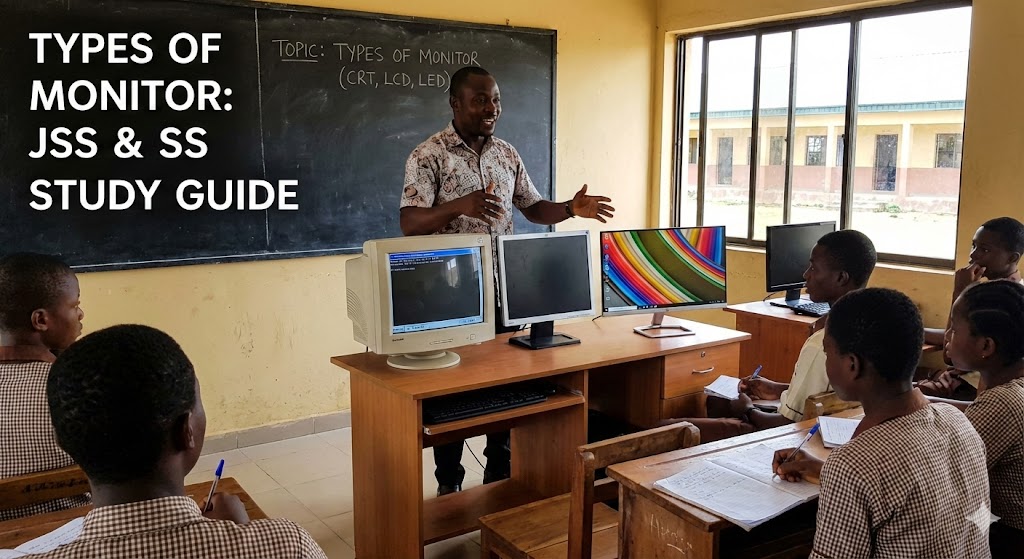
Types of Monitor and Their Functions for Computer Studies
Types of Monitor and Their Functions for Computer Studies
Let’s be honest, Computer Studies is one of the easiest subjects to pass in WAEC or NECO if you just understand the basics. But every year, I see students failing simple questions in Section A because they confuse the hardware components. They mix up input devices with output devices.
Today, we are fixing that. We are going to look strictly at the types of monitor available in the market and how they work. This topic is standard for JSS1 through SS3, so get your notebook ready. We are not just memorizing definitions; we are understanding them so you never forget.

Definition of a Computer Monitor
A monitor is an electronic output device that displays information from the computer in visual form, such as text, images, and video. It is the most common interface between the user and the computer system.
Think of the monitor like the face of the computer. The CPU is the brain doing all the thinking, but the monitor is the face that shows you the expression. Without it, you have no idea what the computer is doing. In technical exams, you must identify it as a “Visual Display Unit” (VDU). That is the keyword examiners look for.
-
You can read more about the technical history of monitors on Wikipedia’s Computer Monitor page.
Classification of Monitors
Monitors are broadly classified into two categories based on the colors they can display.
-
Monochrome Monitors: These display images in only one color (usually white, green, or amber) against a black background. It is like looking at those old black-and-white photos of your grandparents from the 1960s. We rarely use these anymore.
-
Color Monitors: These display text and graphics in multiple colors using the RGB (Red, Green, Blue) model. This is what we use in modern computing.
Cathode Ray Tube Monitors
A Cathode Ray Tube (CRT) monitor is an older type of display device that uses a vacuum tube and electron guns to project images onto a phosphorescent screen.
If you grew up in a typical Nigerian home before 2010, you know this one. This is the “Papa Ajasco” style television or computer screen. It has a big “hunchback” at the back. It is heavy, bulky, and takes up your entire desk space.
Characteristics of CRT:
-
High Power Consumption: It eats electricity. If you are using a prepaid meter, this monitor is your enemy.
-
Heat Emission: After using it for two hours, if you touch the back, it feels hot enough to fry an egg.
-
Glass Screen: The screen is made of thick glass and is slightly curved.
Liquid Crystal Display Monitors
An LCD monitor is a flat-panel display that uses the light-modulating properties of liquid crystals to produce images. Unlike the CRT, the liquid crystals do not emit light directly; they use a backlight or reflector.
This was the technology that changed everything. Suddenly, monitors became flat and light. You could lift them with one hand. The screen is flat, not curved. However, the viewing angle on older LCDs was poor. If you stood by the side and looked at the screen, the image would look dark or like a “negative” photo.
Light Emitting Diode Monitors
An LED monitor is actually a type of LCD that uses light-emitting diodes for backlighting instead of the fluorescent lamps used in traditional LCDs.
This is the current standard. Think of the screens we see in modern sports viewing centers or high-end smartphones. They are extremely bright, the colors pop, and they are very thin. While an LCD might look a bit washed out if the sun hits it, an LED screen usually stays sharp.
Differences Between CRT and LED Monitors
I always tell my students to memorize this table. It is a guaranteed question in theoretical exams.
-
Size: CRT is bulky and heavy; LED is slim and lightweight.
-
Power: CRT consumes high power (up to 100 watts); LED is energy efficient (often less than 20 watts).
-
Heat: CRT generates significant heat; LED runs cool.
-
Resolution: CRT has lower resolution generally; LED supports High Definition (HD) and 4K easily.
-
Cost: CRT is obsolete and cheap (scrap value); LED is expensive to buy but cheaper to maintain.
Factors to Consider When Buying a Monitor
When you want to buy a monitor, you don’t just pick the finest looking one. You must look at the specs.
-
Resolution: This refers to the number of pixels on the screen. Think of pixels like the tiny beads on a waist bead. The more beads you have, the tighter and clearer the pattern looks. Higher resolution means a clearer picture.
-
Size: This is measured diagonally in inches. A 24-inch monitor gives you more workspace than a 15-inch one.
-
Response Time: This is how fast the monitor can change colors. If you are a gamer or you watch fast-paced movies, you need a fast response time, or the image will look blurry (what we call “ghosting”).
-
Brand and Warranty: In Nigeria, parts availability matters. Brands like HP, Dell, and LG are popular because if they spoil, you can easily find a technician at Computer Village to fix them.
Modern Challenges in Display Technology
One thing your textbook might not cover, but is very real, is “Computer Vision Syndrome.”
We spend hours staring at these screens. Modern monitors emit blue light, which can trick your brain into thinking it is still daytime, messing up your sleep. I always advise students to use the “Night Light” setting on their Windows PC if they are studying late. It turns the screen slightly yellow/orange and saves your eyes.
-
Check out this guide on Computer Vision Syndrome by the American Optometric Association to understand the risks.
Conclusion
Don’t overcomplicate this topic. Remember the progression: we moved from the heavy, hot CRT monitors to the flat LCDs, and now we use sharp, energy-saving LEDs.
Master the differences between them, especially regarding power consumption and size. Go through your notes, label the diagrams if you have them, and you will be fine. Good luck with your studies!