Complete List of Computer Shortcut Keys A to Z for Students
Complete List of Computer Shortcut Keys A to Z for Students
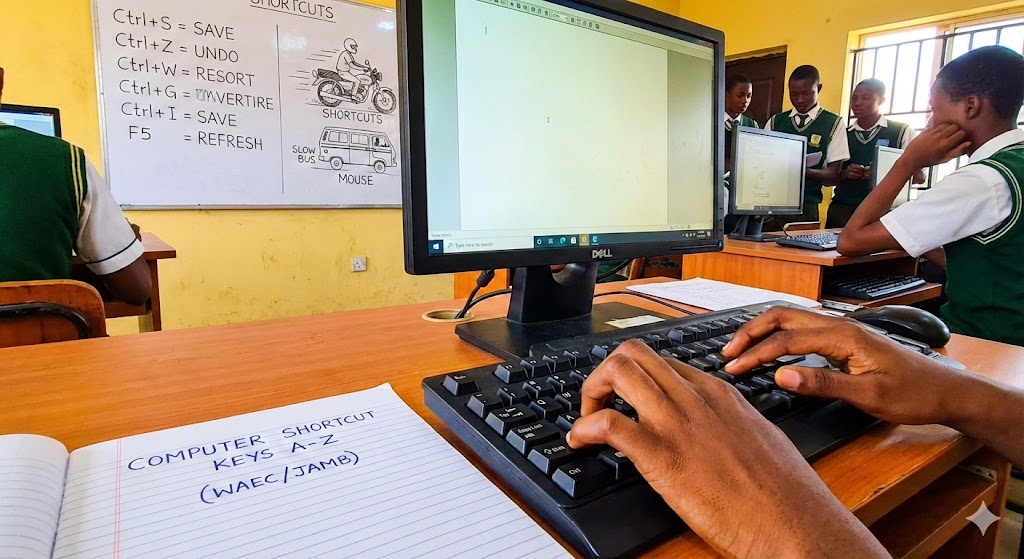
Let’s be honest, using a mouse for everything is slow. It is like taking a “Danfo” bus that stops at every junction when you could just take an Okada (bike) and zoom straight to your destination. In the computer world, the shortcut key of computer a to z is your Okada.
If you are preparing for WAEC or JAMB CBT, time is your biggest enemy. You cannot afford to be dragging the mouse cursor from one corner of the screen to another just to copy a text. It wastes time. Mastering these keys separates the amateurs from the professionals. I always tell my students: if you want to finish your JAMB exam before the timer stops, learn these keys.

Definition of Keyboard Shortcuts
Keyboard shortcuts are combinations of two or more keys that, when pressed together, perform a specific task usually done with a mouse. They are designed to make your work faster and your life easier.
Think of it as a “secret code.” Instead of going to the File menu, clicking Save, and waiting, you just press two keys, and the job is done. It is direct. It is efficient.
Basic Control Key Shortcuts A to Z
The “Control” key (Ctrl) is the boss of shortcuts. When you hold it down and press a letter, magic happens. Here is the complete list you need to memorize for your objective questions.
-
Ctrl + A: Select All text or files in the current window.
-
Ctrl + B: Bold the selected text (Make it thick).
-
Ctrl + C: Copy the selected item. (The most popular key in school assignments).
-
Ctrl + D: Bookmark an open page or choose font options in MS Word.
-
Ctrl + E: Center align text.
-
Ctrl + F: Find a word or phrase in the document.
-
Ctrl + G: Go to a specific page or section.
-
Ctrl + H: Replace text (Find a word and change it to another).
-
Ctrl + I: Italicize text (Make it slant).
-
Ctrl + J: Justify text (Make the edges straight like a textbook).
-
Ctrl + K: Create a Hyperlink.
-
Ctrl + L: Left align text.
-
Ctrl + M: Indent a paragraph from the left.
-
Ctrl + N: Open a New document or window.
-
Ctrl + O: Open an existing file.
-
Ctrl + P: Print the current document.
-
Ctrl + Q: Remove paragraph formatting.
-
Ctrl + R: Right align text.
-
Ctrl + S: Save the file. (Do this every 5 minutes before NEPA takes light).
-
Ctrl + T: Create a hanging indent (in Word) or open a new tab (in Browsers).
-
Ctrl + U: Underline the selected text.
-
Ctrl + V: Paste the copied content.
-
Ctrl + W: Close the current window or document.
-
Ctrl + X: Cut the selected item (Move it away completely).
-
Ctrl + Y: Redo an action.
-
Ctrl + Z: Undo the last action (Your digital eraser).
Function Keys and Their Uses
Function keys are the keys labeled F1 to F12 found at the very top of the keyboard. They act as single-button commands.
-
F1: Opens the Help menu. If you are confused, press this.
-
F2: Renames a selected file or folder instantly.
-
F5: Refreshes the page. When the school network is slow, this is your best friend.
-
F7: Checks spelling and grammar in Microsoft Word.
-
F12: Opens the “Save As” dialog box.
Text Editing and Navigation Shortcuts
These are commands used to move the cursor quickly or edit text without touching the mouse.
When you are typing a long essay, moving your hand to the mouse breaks your flow. It is distracting. Use these instead:
-
Home: Moves the cursor to the beginning of the current line.
-
End: Moves the cursor to the end of the current line.
-
Ctrl + Home: Moves to the very beginning of the document.
-
Ctrl + End: Moves to the very end of the document.
-
Alt + Tab: Switch between open programs. (Useful if you are watching a movie and the teacher walks in).
-
Shift + Arrow Keys: Highlights text letter by letter.
For a deeper understanding of how these input devices work technically, you can read more on Wikipedia’s Computer Keyboard entry.
Windows System Commands
System commands control the behavior of the operating system window rather than just the text inside it. These are critical for managing your workspace.
-
Windows Key + D: Minimizes all open windows and shows the Desktop immediately.
-
Windows Key + E: Opens the File Explorer (My Computer).
-
Windows Key + L: Locks your computer. Do this when you want to use the restroom so nobody touches your work.
-
Alt + F4: Closes the active program completely.
Why Speed Matters in CBT Exams
In Nigeria, exams like JAMB and some Post-UTME are now Computer Based Tests (CBT). You have limited time. If you use the mouse to click “Next” or “Submit,” you are burning seconds.
Knowing shortcuts helps you navigate the interface faster. While other students are struggling to click on tiny buttons, you are flying through the questions. It gives you a psychological advantage. You feel in control. You are not fighting the computer; you are commanding it.
Conclusion
Mastering these shortcuts is not just for passing exams; it is a life skill. Whether you want to be a secretary, a programmer, or a banker, speed is money. Start practicing with Ctrl+C and Ctrl+V, and then move to the others.
Now, close your notes and practice. Good luck with your exams.